
In this article, we will discuss the Tile view of the Warehouse module, including its specifications and various benefits.
If you are interested in exploring more about the Tile view, kindly click here.
Getting started
- Go to the
Warehouse module.
- Click on
in the top right corner of your screen.
- Then select
.
Change columns
You can personalize the overview by adding and removing columns. You can also sort or group elements on the base of a column to focus on the information you really need. Check out this article for more information.
Filter by stock location/ warehouse
(sub)Projects can be filtered in the Warehouse module by stock location.
This filters (sub)projects only. The scheduled transport and crew shown in the Warehouse module are not filtered by stock location.
Filter by date
A (sub)project will be shown in the module based on its due date. Due date is when the planning period has started. To change the standard setting of "Today" as due date, you can change the date in the top left corner in the Warehouse module. 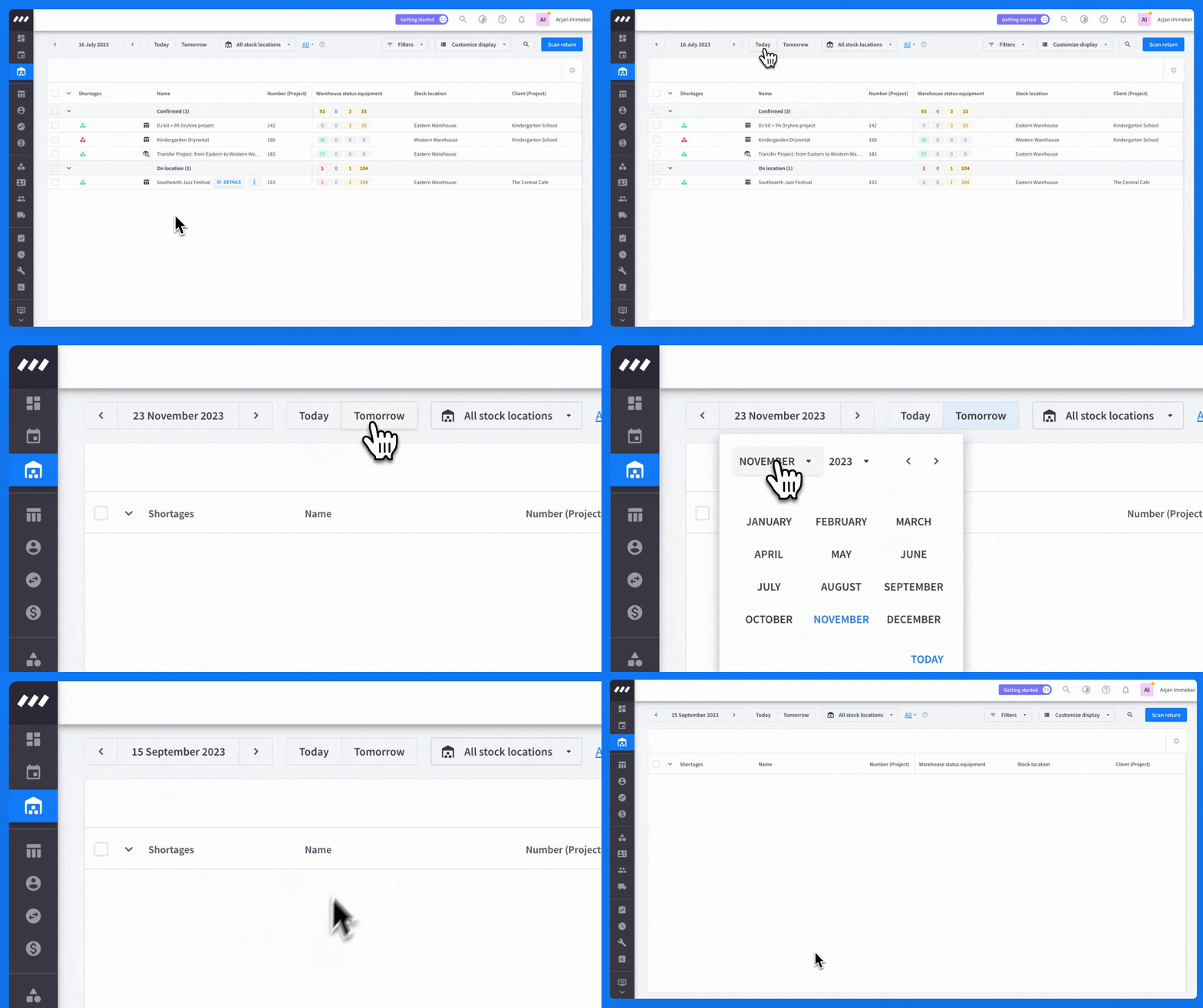
Select filters
Filters help you search and focus within a module. You can use them to find a specific equipment or invoice, or narrow down your selection of projects or equipment items. Creating presets lets you easily switch between different filter selections whenever you want. 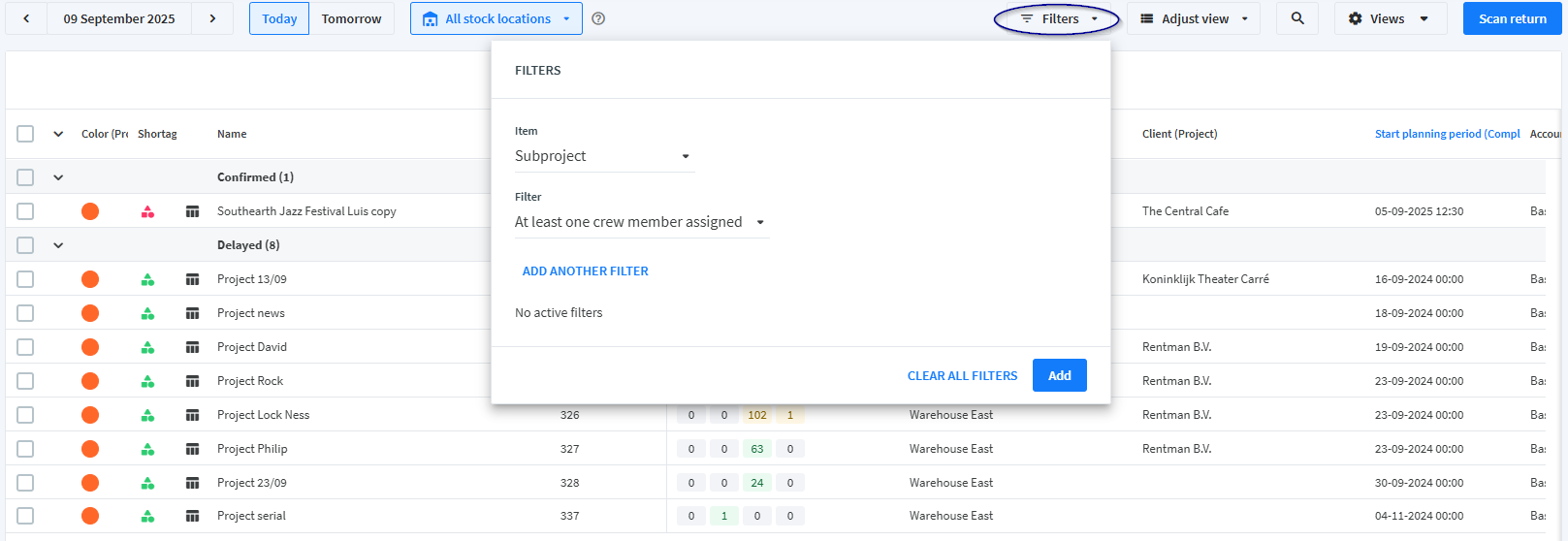
Search for a project
Scan return
If you have serialized equipment coming back from multiple projects at the same time, we have a handy time-saving solution called the "Scan return" feature. It allows you to efficiently scan and return equipment without the need to open each project individually. Read more about it here.
How to work with the List view
Shortages Column
All rental equipment in this (sub)project is reserved
There are shortages on rental equipment on this (sub)project
Name Column
Under the "Name" column, you can see projects sorted by project status:
- Confirmed
- Prepped
- On location
- Returned
It is important to note that equipment status and project status can differ.
Example: you booked part of the equipment to "On location", but you will
finish packing the next day. The status of some of the equipment is now on
location, while the project status is still "Confirmed".
Warehouse Status Equipment Column
In the "Warehouse Status Equipment" column, you can see the number of equipment in each equipment status and details on equipment distribution.
In the Warehouse module, equipment can have one of four statuses displayed in the following columns:
- To pack: This represents equipment for confirmed projects on the current day.
- Prepped: This indicates equipment that has been prepared.
- On location / Expected back: This reflects equipment for projects currently taking place.
- Delayed: This denotes equipment from projects that should have returned but hasn't been (completely) booked back to the warehouse. This status is automatically assigned when some equipment is still on location, and it cannot be manually assigned to projects.
Rentman Tip: You can easily add more statuses by customizing them. Read more about it here.
Color indicator
Red = Equipment left behind
Yellow = Some equipment is on a different status
Green = All equipment is in sync with project status
Was this article helpful?
3 out of 3 found this helpful